Example b2
This example reproduces the Geant4 basic example B2. It uses the flux digitization to save true and digitized information in the output.
You can run this example in your browser: 
Quickstart
Copy the example to your current directory. To create the geometry, run 10 events, and produce ROOT and CSV output files:
cp -r $GEMC_HOME/examples/basic/b2 .
cd b2
./b2.py
gemc b2.yaml -n=10
Geometry
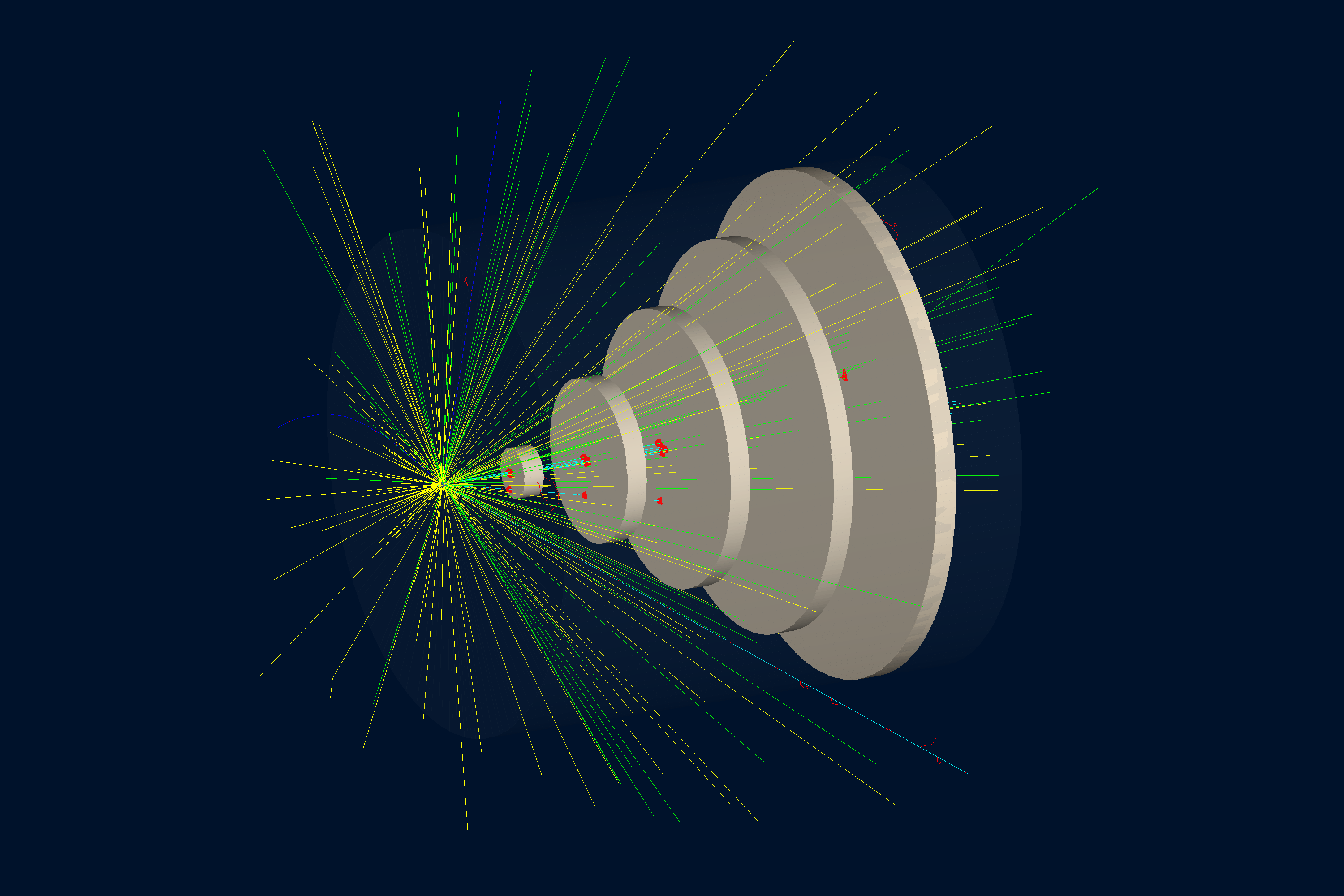
The geometry, shown below, is defined in b2.py.
The world (a box named root) contains:
- target, a cylindrical target made of lead (G4_Pb)
- tracker, a cylindrical container made of air (G4_AIR)
- five cylindrical chamber volumes named chamber_0 through chamber_4, made of xenon (G4_Xe) and placed inside tracker with increasing transverse size
Interactive viewer:
Physics List
FTFP_BERT is used by default, selected in the YAML file with phys_list: FTFP_BERT.
phys_list
The physics list can be selected using the option
gemc -phys_list <value>where
<value>can be a combination of the Geant4 physics constructors separated by the+sign. For examplegemc -phys_list="FTFP_BERT + G4NeutronCrossSectionXS"To see a list of the available Geant4 constructors:
gemc -showPhysics
Generator
The particle kinematics are defined in the YAML file:
gparticle:
  - name: proton
    p: 3000*MeV
    vz: -250*cm
See also the Internal Generator Documentation for more information.
Digitization
The chamber volume sensitivities are specified with the flux digitization (one of the available GEMC prebuilt routines)
in b2.py. The copy number identifies each chamber:
gvolume.digitization = 'flux'
gvolume.set_identifier('mychamber', copyNo)
In this case, the identifier contains only one name: mychamber.
See the Flux Documentation for more information.
In addition to the digitized variables, the true information is saved on the output stream.
True Information
The true information is processed by GEMC and, in some cases, averaged and weighted by the energy deposition. For variables like
pid,tid, orprocessName, the data come from the first step in the hit.The complete list of variables is:
- the sensitive element
identifier, assigned by the user. For example:
sectorlayerhitn: hit numberpid: particle IDtid: track IDavgTime: average timeavglx: average local x positionavgly: average local y positionavglz: average local z positionavgx: average global x positionavgy: average global y positionavgz: average global z positiontotalEDeposited: total energy depositedprocessName: process name creating the first step of this hit
Usage
Building the detector
Use the Python script b2.py to build the detector. By default, the setup is stored in a SQLite file
named gemc.db. Command-line options can define the database type, variations, and run number.
See also the Building Geometry for more information.
Running GEMC
The file b2.yaml can be used to run the setup. Add -gui to run interactively:
gemc b2.yaml -gui
Modify b2.yaml as needed, in particular to add particles, control the number of threads, or change the output.
Running Events
Output
The gstreamer option selects the output filenames and the format:
gstreamer:
  - format: csv
    filename: b2
Because flux is a per-event digitization, GEMC will produce one output file per thread.
For ROOT files, you can use hadd to merge the files.
See also the Output Documentation for more information.
Plotting with the GEMC Analyzer
Run GEMC with 1,000 events first. The default YAML file writes the analyzer CSV streams.
gemc b2.yaml -n=1000
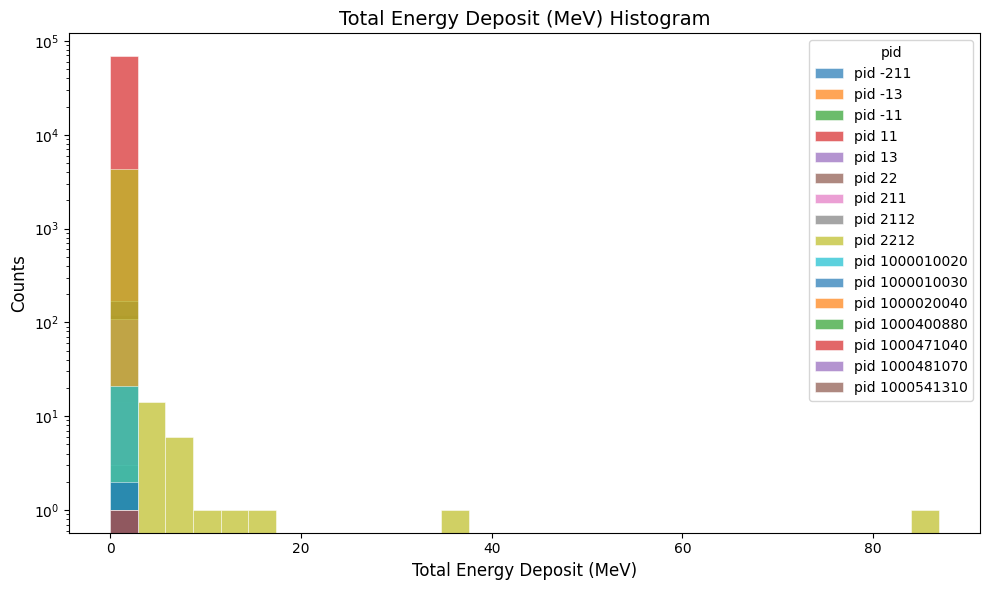
Plot the total energy deposited per hit:
gemc-analyzer b2_t0_digitized.csv totEdep --kind csv
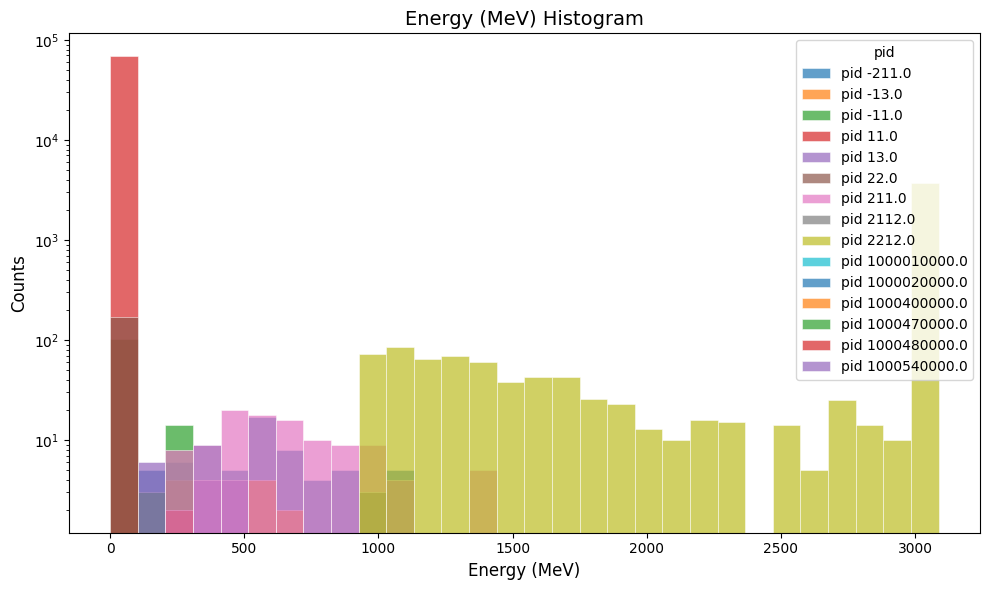
Plot the true particle track energy:
gemc-analyzer b2_t0_true_info.csv E --kind csv --data true_info
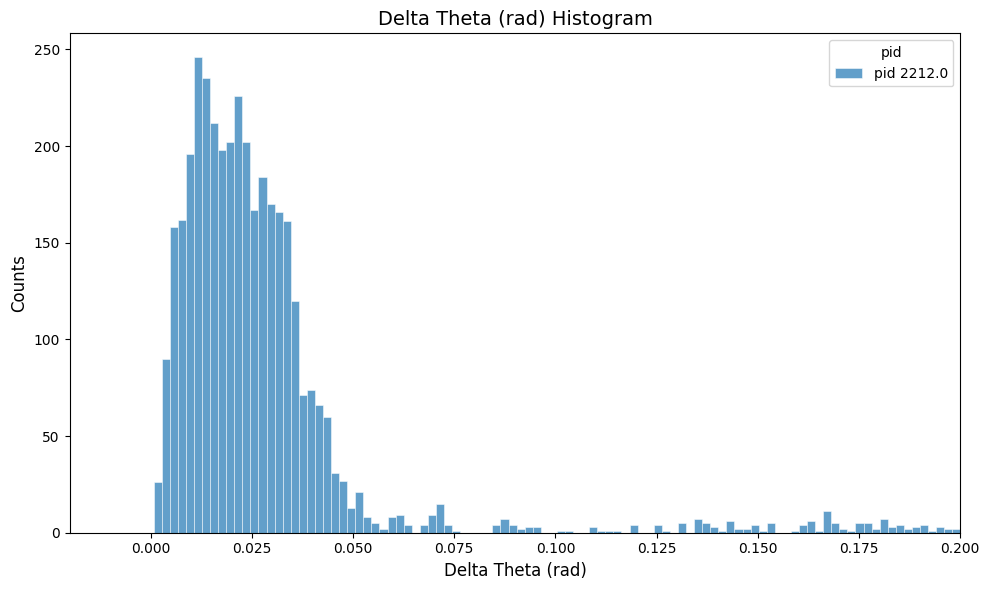
Plot the proton polar-angle residual:
The save_original_track: true option in b2.yaml saves otid and the original momentum components opx,
opy, and opz in the true-information output. The analyzer uses the original and current momentum
directions to calculate delta_theta.
gemc-analyzer b2_t0_true_info.csv delta_theta --kind csv --data true_info --pid 2212 --bins 100 --xlim -0.02 \
  0.2 --linear-y