GUI Quickstart
Add -gui to gemc to open the interactive Qt interface.
Using the Quickstart counter example:
gemc counter.yaml -gui
The window is divided into three zones:
- Top bar — run controls and event counters.
- Left button bar — six icon buttons that select the active page.
- Right content area — the page selected by the left bar.
Top bar
| Control | Description |
|---|---|
| N. Events | Number of events to process per run. Edit the field to change it. |
| Run | Execute one batch of N events, then update the event counter. |
| Cycle | Run one batch every 2 seconds continuously. |
| Stop | Stop a running cycle. |
| Event Number | Cumulative count of events processed since launch. |
| Exit | Quit GEMC. |
Pages
Display
The Geant4 3D visualization window.
The View tab exposes:
- Camera — theta/phi sliders and preset direction dropdowns to orbit the viewpoint; Read View synchronizes the sliders from the current viewer orientation.
- Light — theta/phi sliders to reposition the scene light source.
- View properties — projection mode (perspective / orthographic), circle-segmentation precision, culling, background color, cloud-point count, and explode factor.
- Slices — activate and position cutaway planes on X, Y, and Z; choose intersection or union mode for multiple planes.
- Toggles — SVG buttons for hidden lines, anti-aliasing, auxiliary edges, and field lines.
Warning
The Slices may not work correctly with some drivers, for example OGLIQt works but TOOLSSG_QT_GLES does not.
The Utilities tab exposes scene decorations and annotation text:
- Scene Decorations — add scale bars, axes, event IDs, dates, Geant4 logos, frames, and decoration colors.
- Scene Text — add 2D or 3D annotation text with position, layout, color, unit, size, and pixel offsets.
Setup
The Setup page reads the geometry database and presents the available experiments and systems in a tree view.
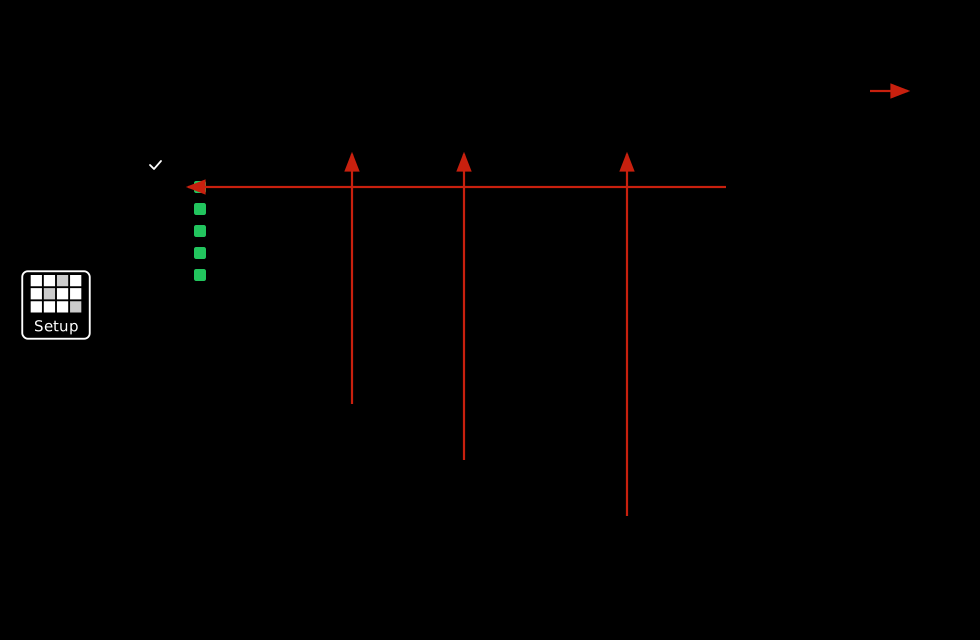
Each system row shows:
| Column | Description |
|---|---|
| exp / system | Checkbox to enable or disable the system in the simulation. |
| volumes | Number of geometry entries for the current variation + run selection. |
| variation | Drop-down listing all variations stored for this system. |
| run | Drop-down listing all run numbers stored for this system. |
The green square (availability indicator) means the selected combination exists in the database.
To switch or add a system:
- Check the system(s) you want to include; uncheck the ones you want to exclude.
- Use the variation and run drop-downs to select the configuration you need.
- Click Reload to rebuild the geometry. The Display and Volumes pages update automatically.
Note
A single database can contain multiple experiments with different system sets. Only one experiment is active at a time; checking a row in a different experiment automatically unchecks the previous one.
Volumes
The Volumes page shows the complete detector geometry as a hierarchical tree, organized by system.
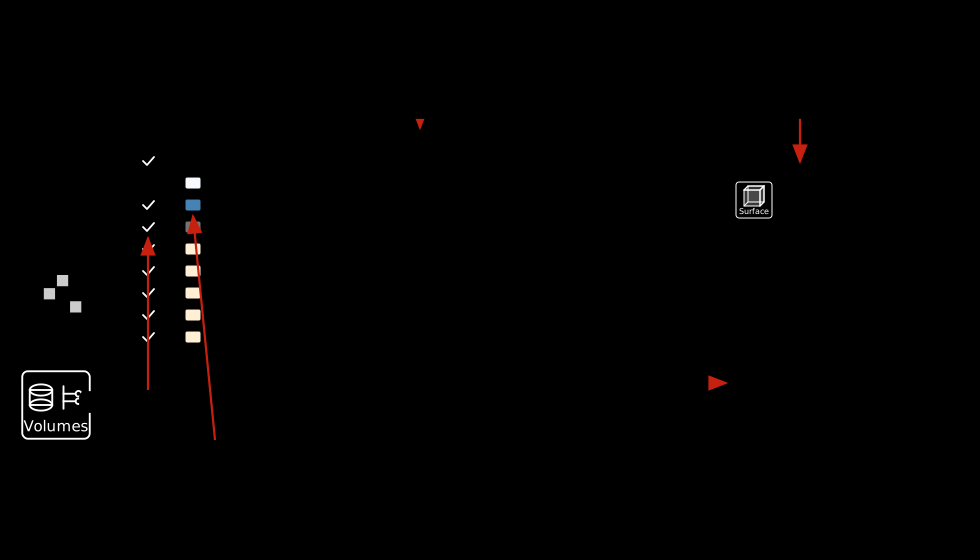
The tree has three columns:
| Column | Description |
|---|---|
| Visibility | Checkbox to show or hide the volume. Toggling a parent also toggles its direct children. |
| Color | Click to open a color picker and change the volume’s display color. |
| Name | Full volume name including the system prefix, shown as a hierarchy. |
The Properties panel on the right shows the selected volume’s opacity and system metadata.
All changes are applied to the Geant4 visualization immediately — no reload is required.
Example workflow — inspect a single volume:
- Navigate to the Volumes page.
- Uncheck the parent system row to hide all volumes.
- Expand the tree and check only the volume of interest.
- Click its color button and choose a highlight color.
- Adjust the opacity to make surrounding volumes semi-transparent instead of hidden.
Dialog
A searchable Geant4 command browser.
- A filterable tree of all available Geant4 UI commands.
- Contextual help and parameter descriptions for the selected command.
- A command prompt for typing and executing commands directly.
- History recall to repeat or modify previous commands.
Generator
The Generator page edits the particle definitions used by the internal event generator.
- Each particle definition appears in its own tab.
- Click the + tab to add another generated particle, or close a particle tab to remove it.
- The Particle section selects the Geant4 particle name and multiplicity per event.
- The Momentum section sets the central momentum, spread, and sampling model.
- The Angles section sets theta/phi values, spreads, sampling models, and visual angular coverage.
- The Vertex section sets the vertex position, spread, and sampling model.
Analyzer
The Analyzer discovers numeric true-information and digitized variables during a GUI run, then draws interactive 1D or 2D histograms. See the GUI Analyzer guide.