Example b1
This example reproduces the Geant4 basic example B1. It uses the dosimeter digitization to store the accumulated dose on a detector.
You can run this example in your browser: 
Quickstart
Copy the example to your current directory. To create the geometry, run 10 events, and produce ROOT and CSV output files:
cp -r $GEMC_HOME/examples/basic/b1 .
cd b1
./b1.py
gemc b1.yaml -n=10
Geometry
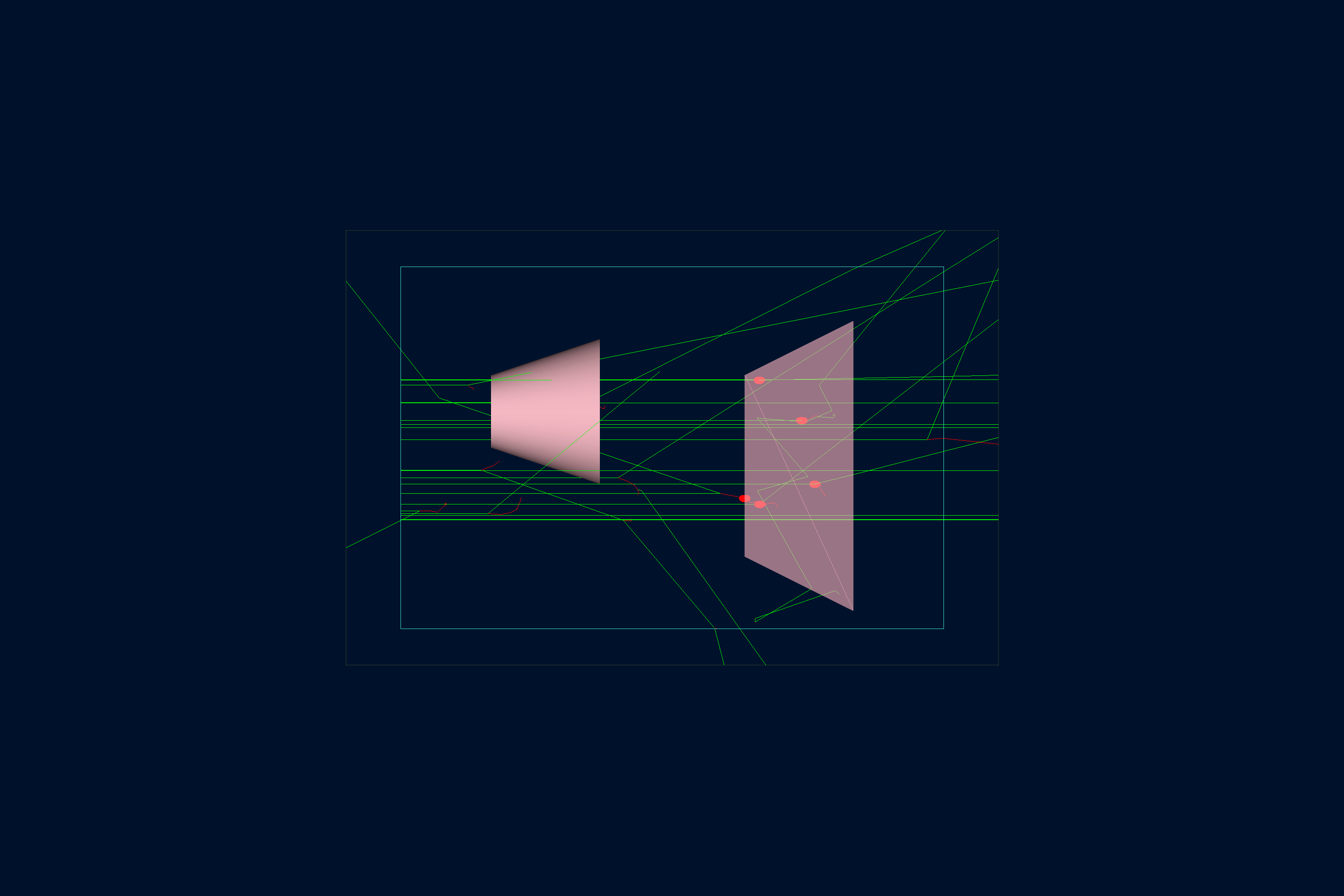
The geometry, shown below, is defined in b1.py.
The world (a box named root) contains:
- Envelope, another box made of water.
-
Shape1 and Shape2, a polycone and a trapezoid, placed inside Envelope. These are made from tissue and bone materials, common for medical applications and thus pre-defined in the Geant4 Material Database:
- G4_A-150_TISSUE
- G4_BONE_COMPACT_ICRU
Interactive viewer:
Physics List
QBBC is used by default, selected in the YAML file with phys_list: QBBC.
phys_list
The physics list can be selected using the option
gemc -phys_list <value>where
<value>can be a combination of the Geant4 physics constructors separated by the+sign. For examplegemc -phys_list="FTFP_BERT + G4NeutronCrossSectionXS"To see a list of the available Geant4 constructors:
gemc -showPhysics
Generator
The particle kinematics are defined in the YAML file:
gparticle:
  - name: gamma
    p: 6*MeV
    vz: -15*cm
    delta_vx: 4*cm
    delta_vy: 4*cm
    multiplicity: 1
gparticle
The
gparticleoption controls the Geant4 particle gun. For the complete list of parameters:gemc help gparticle.Common parameters:
name: particle name (mandatory), e.g.protonore-multiplicity: number of copies generated per event; copies are independently randomized when spread parameters such asdelta_pordelta_thetaare setp: particle momentum with unit, e.g.4*GeVor4000*MeVdelta_p: momentum spread, centered onptheta: polar angle with unit, e.g.23*degor0.4*raddelta_theta: polar-angle spread, centered onthetaphi: azimuthal angle with unit, e.g.90*degKinematic values accept an explicit Geant4 unit (
value*unit). A plain number without a unit falls back to MeV for momentum, deg for angles, and cm for vertex coordinates, with a logged warning.For example, to define a particle gun with one electron along z plus one proton at θ = 30° and φ = 90°:
Command line:
-gparticle="[{name: e-, p: 5*GeV}, {name: proton, p: 2000*MeV, theta: 30*deg, phi: 90*deg}]"YAML:
gparticle:
  - name: e-
    p: 5*GeV
    multiplicity: 5
  - name: proton
    p: 2000*MeV
    theta: 30*deg
    phi: 90*deg
See also the Internal Generator Documentation for more information.
Digitization
The Shape2 volume sensitivity is specified with the dosimeter digitization (one of the available GEMC prebuilt routines)
in b1.py:
gvolume.digitization = 'dosimeter'
gvolume.set_identifier('mydosimeter', 1)
The dosimeter digitization creates and accumulates the variables etot and dose throughout events in a run.
\[\mathrm{dose} = \frac{\mathrm{etot}}{\mathrm{mass}}\]where etot is the total energy deposited in each event and mass is the mass of Shape2.
Here, the custom string mydosimeter and number 1 identify the sensitive element.
The variables mydosimeter, etot, and dose are saved in the output.
See the Dosimeter Documentation for more information.
Usage
Building the detector
Use the Python script b1.py to build the detector. By default, the setup is stored in a SQLite file
named gemc.db. Command-line options can define the database type, variations, and run number.
python API
Pass
-hfor additional command line options:options: -h, --help show this help message and exit -f, --factory FACTORY ascii, sqlite -v, --variation VARIATION Set variation name -r, --run RUN Set run number -sql, --dbhost DBHOST SQLite filename or MYSQL host -pv, --pyvista Show geometry using pyvista (needs pyvista) -pvb, --pvb, --pyvista-background Use PyVista BackgroundPlotter (needs pyqt6 pyvistaqt) -pvw, --width WIDTH Set plotter width -pvh, --height HEIGHT Set plotter height -pvx, --x X Set plotter x position -pvy, --y Y Set plotter y position -axes, --add_axes_at_zeroIf you have
pyvista(see also install pyvista), you can use the-pvand-pvboptions to display the setup without having to run GEMC
See also the Building Geometry for more information.
Running GEMC
The file b1.yaml can be used to run the setup.
Add -gui to run GEMC interactively:
gemc b1.yaml -gui
Scene annotations and decorations live in annotations.yaml so the same example can be rendered with or without labels:
gemc b1.yaml
gemc b1.yaml annotations.yaml
Modify b1.yaml or the command line as needed, in particular to add particles, control the number of threads, or change the output.
Running Events
Output
The gstreamer option selects the output name and format. The YAML file writes simultaneous CSV and ROOT streams:
gstreamer:
  - format: csv
    filename: b1
gstreamer
The
gstreameroption selects the output name and format. Rungemc help gstreamerto check its documentation:-gstreamer=<sequence> ......: define a gstreamer output • filename: name of output file. Default value: NODFLT • format: format of output file. Default value: NODFLT • type: type of output fileDefault value: event Define output formats and filenames. It can be used to select <events> or <frame> streams. The file extension is added automatically based on the format. Supported formats: - root - ascii - csv - json Output types: - event: write events - stream: write frame time snapshots Example that defines two gstreamer outputs: -gstreamer="[{format: root, filename: out}, {format: csv, filename: out}]" The produced files structure depends on the accumulation method used: - event-based digitization (like <flux>) will have one file per thread, with "_t<thread#>" appended to the filename - run-based digitization (like <dosimeter>) will have one output file
See also the Output Documentation for more information.
Plotting with the GEMC Analyzer
Run GEMC with 20 events first. The default YAML file writes the analyzer CSV streams.
gemc b1.yaml -n=20
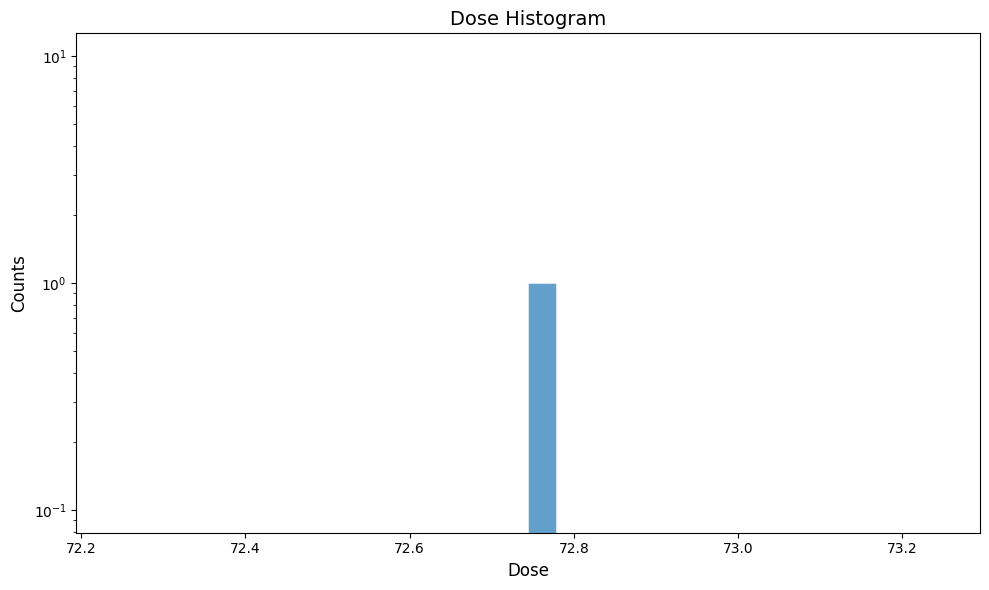
Plot the accumulated dose:
gemc-analyzer b1_digitized.csv dose --kind csv