Simple Flux Detector


This example uses the flux digitization to save true and digitized information in the output.

You can run this example in your browser: Simple Flux


Quickstart

Copy the example to your current directory. To create the geometry, run 10 events, and produce ROOT and CSV output files:

cp -r $GEMC_HOME/examples/basic/simple_flux .
cd simple_flux
./simple_flux.py
gemc simple_flux.yaml -n=10


Geometry

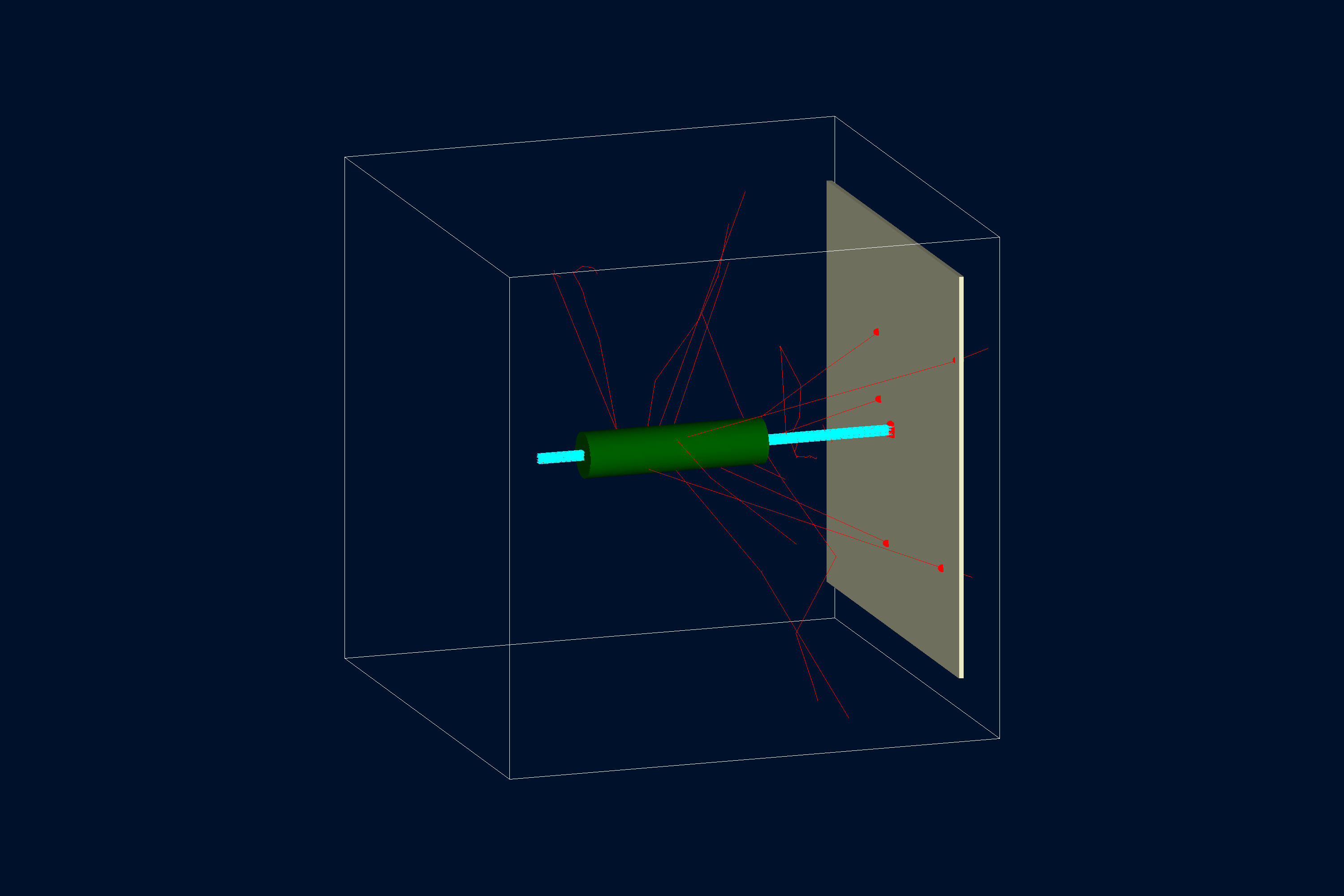
The geometry, shown below, is defined in simple_flux.py.

The world (a box named root) contains:

simple_flux geometry, rendered by PyVista: the target and the sensitive flux detector FluxPlane

Interactive viewer:


Physics List

QBBC is used by default, selected in the YAML file with phys_list: QBBC.

phys_list

The physics list can be selected using the option

gemc -phys_list <value>

where <value> can be a combination of the Geant4 physics constructors separated by the + sign. For example

gemc -phys_list="FTFP_BERT + G4NeutronCrossSectionXS"

To see a list of the available Geant4 constructors:

gemc -showPhysics


Generator

The default kinematics is a 2 GeV proton generated along the z-axis just before the target. A beam size of 0.1 cm is used. This is defined in the YAML file:

gparticle:
  - name: proton
    p: 2000
    vz: -3
    delta_vx: 0.1
    delta_vy: 0.1
    multiplicity: 10

gparticle

The gparticle option allows to control the Geant4 particle gun. For the complete list of parameters that can be passed to it: gemc help gparticle.

Some of them:

  • name: Particle name (mandatory), for example “proton”.
  • multiplicity: How many copies of this particle will be generated in each event. notice that the copies are not identical if some additional parameters are specified, for example delta_p, delta_theta.
  • p: Particle momentum.
  • delta_p: Particle momentum range, centered on p.
  • theta: Particle polar angle.
  • delta_theta: Particle polar angle range, centered on theta. D
  • phi: Particle azimuthal angle.

For example, to define a particle gun with one electron along z plus 1 proton at theta=30,phi=90 degrees, use

  • Command line:

    -garticle="[{name: e-, p: 5000}, {name: proton, p: 2000, theta: 30, phi: 90}]"
    
  • Yaml:

     particle:
      - name: e-
        p: 5000
        multiplicity: 5
      - name: proton
        p: 2000
        theta: 30
        phi: 90


Digitization

The FluxPlane is associated with the flux digitization (one of the available GEMC pre-built routines) in simple_flux.py, with identifier flux_plane = 1.

gvolume.digitization = "flux"
gvolume.set_identifier("flux_plane", 1)

flux

The flux digitization collects all G4Steps into hits by using the track id: all steps within a sensitive element produced by the same track define a single hit. Different tracks’ steps in the same sensitive element are collected in separate hits. This digitization can be used to count and analyze the tracks passing through a volume.

Flux hit definition example: three tracks goes through two sensitive cells.
Track 1 creates two hits: < cell2, hit #1 > and < cell1, hit #1 >.
Track 2 creates two hits: < cell1, hit #2 > and < cell2, hit #2 >.
Track 3 creates one hit: < cell2, hit #3 >.

The DIGITIZED VARIABLES below, resulting from the flux digitization, are stored in the output.

  • the sensitive element identifier, assigned by the user. For example
    • sector
    • layer
  • hitn: hit number
  • pid: particle id
  • tid: track id
  • E: track energy
  • time: time of the hit
  • totEdep: total energy deposited by the track

In this case, the identifier contains one name: flux_plane.

In addition to the digitized variables, the true information is saved on the output stream.

True Information

The true information information is processed by GEMC and in certain instances averaged (weighted by the energy deposition if present); in others, like pid, tid or processName, the data come from the first step in the hit.

The complete list of variables are:

  • the sensitive element identifier, assigned by the user. For example
    • sector
    • layer
  • hitn: hit number
  • pid: particle id
  • tid: track id
  • avgTime: average time
  • avglx: average local x position
  • avgly: average local y position
  • avglz: average local z position
  • avgx: average global x position
  • avgy: average global y position
  • avgz: average global z position
  • totalEDeposited: total energy deposited
  • processName: process name creating the first step of this hit


Usage

Building the detector

Use the Python script simple_flux.py to build the detector. By default, the setup is stored in a SQLite file named gemc.db. Command-line options can define the database type, variations, and run number.

python API

Pass -h for additional command line options:

options:
  -h, --help            show this help message and exit
  -f, --factory FACTORY
						ascii, sqlite
  -v, --variation VARIATION
                        Set variation name
  -r, --run RUN         Set run number
  -sql, --dbhost DBHOST
                        SQLite filename or MYSQL host
  -pv, --pyvista        Show geometry using pyvista (needs pyvista)
  -pvb, --pvb, --pyvista-background
                        Use PyVista BackgroundPlotter (needs pyqt6 pyvistaqt)
  -pvw, --width WIDTH   Set plotter width
  -pvh, --height HEIGHT
						Set plotter height
  -pvx, --x X           Set plotter x position
  -pvy, --y Y           Set plotter y position
  -axes, --add_axes_at_zero

If you have pyvista (see also install pyvista), you can use the -pv and -pvb options to display the setup without having to run GEMC


Running gemc

The file simple_flux.yaml can be used to run the setup. Add -gui to run interactively:

gemc simple_flux.yaml -gui

Modify simple_flux.yaml as needed, in particular to add particles, control the number of threads, or change the output.


Output

The gstreamer option is used to select the name and format of the output. Two simultaneous streams are selected, ROOT and CSV:

gstreamer:
  - format: csv
    filename: simple_flux
  - format: root
    filename: simple_flux

Because flux is a per-event digitization, GEMC will produce one output file per thread. For ROOT files, you can use hadd to merge the files.

gstreamer

The gstreamer option allows select the name and format of the output. Run gemc help gstreamer to check its documentation:

-gstreamer=<sequence> ......: define a gstreamer output

• filename: name of output file. Default value: NODFLT
• format: format of output file. Default value: NODFLT
• type: type of output fileDefault value: event


Define output formats and filenames. 
It can be used to select <events> or <frame> streams.
The file extension is added automatically based on the format.

Supported formats:
	
  - jlabsro
  - root
  - ascii
  - csv
  - json


Output types:

  - event: write events
  - stream: write frame time snapshots

Example that defines two gstreamer outputs:

 -gstreamer="[{format: root, filename: out}, {format: csv, filename: out}]"


The produced files structure depends on the accumulation method used:

  - event-based digitization (like <flux>) will have one file per 
    thread, with "_t<thread#>" appended to the filename
  - run-based digitization (like <dosimeter>) will have one output file


Plotting with the GEMC Analyzer

Run GEMC with 10,000 events first. The default YAML file writes simple_flux_t0_digitized.csv and simple_flux_t0_true_info.csv.

gemc simple_flux.yaml -n=10000

Plot the digitized total energy deposited:

python3 -m analyzer simple_flux_t0_digitized.csv totEdep --kind csv
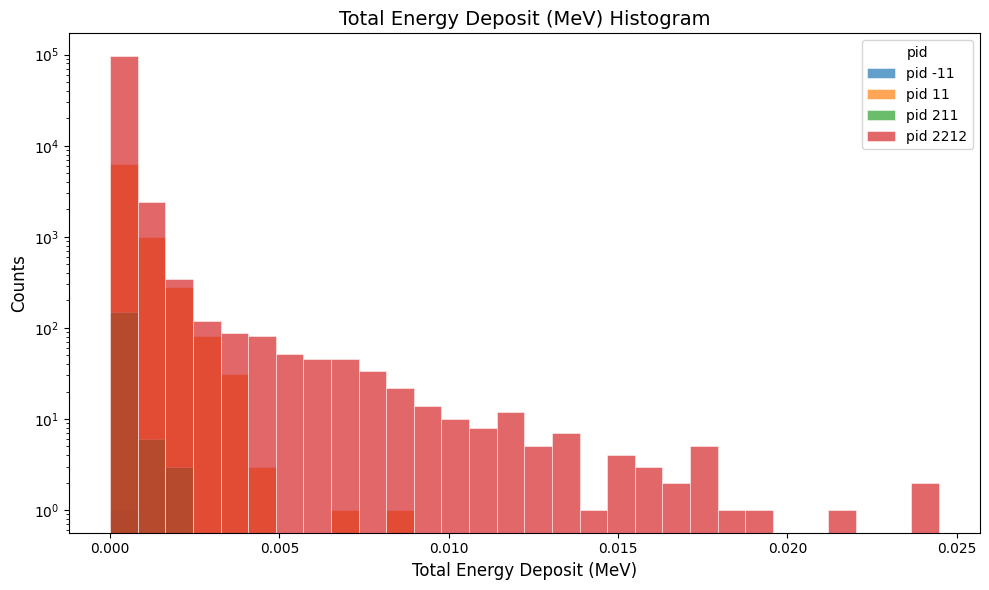
simple flux total energy deposited plot

Plot the true particle track total energy:

python3 -m analyzer simple_flux_t0_true_info.csv E --kind csv --data true_info
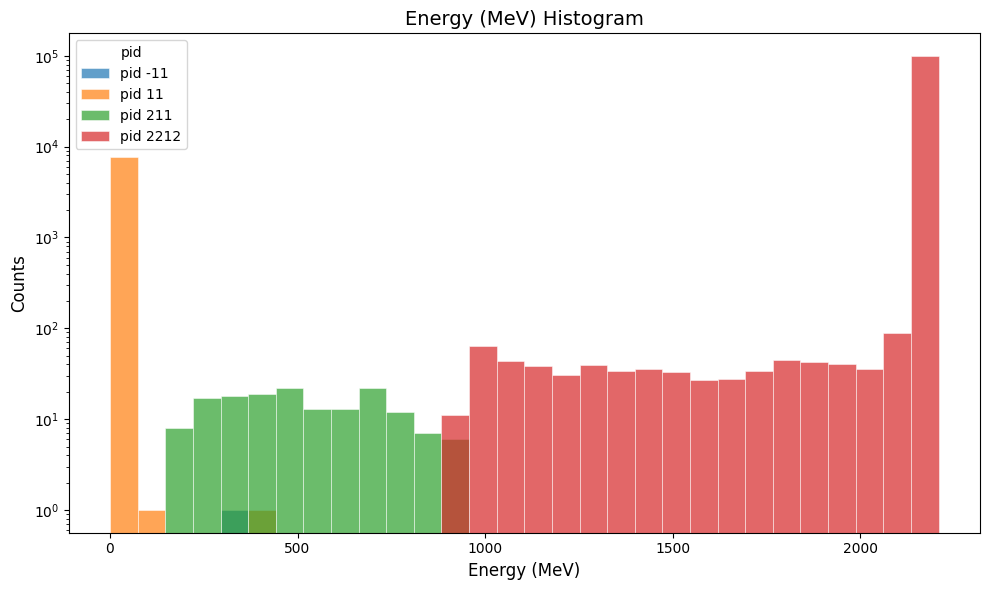
simple flux true track total energy plot